Consent Customization
Customizable elements in the TS43 consent screen and key integration points.
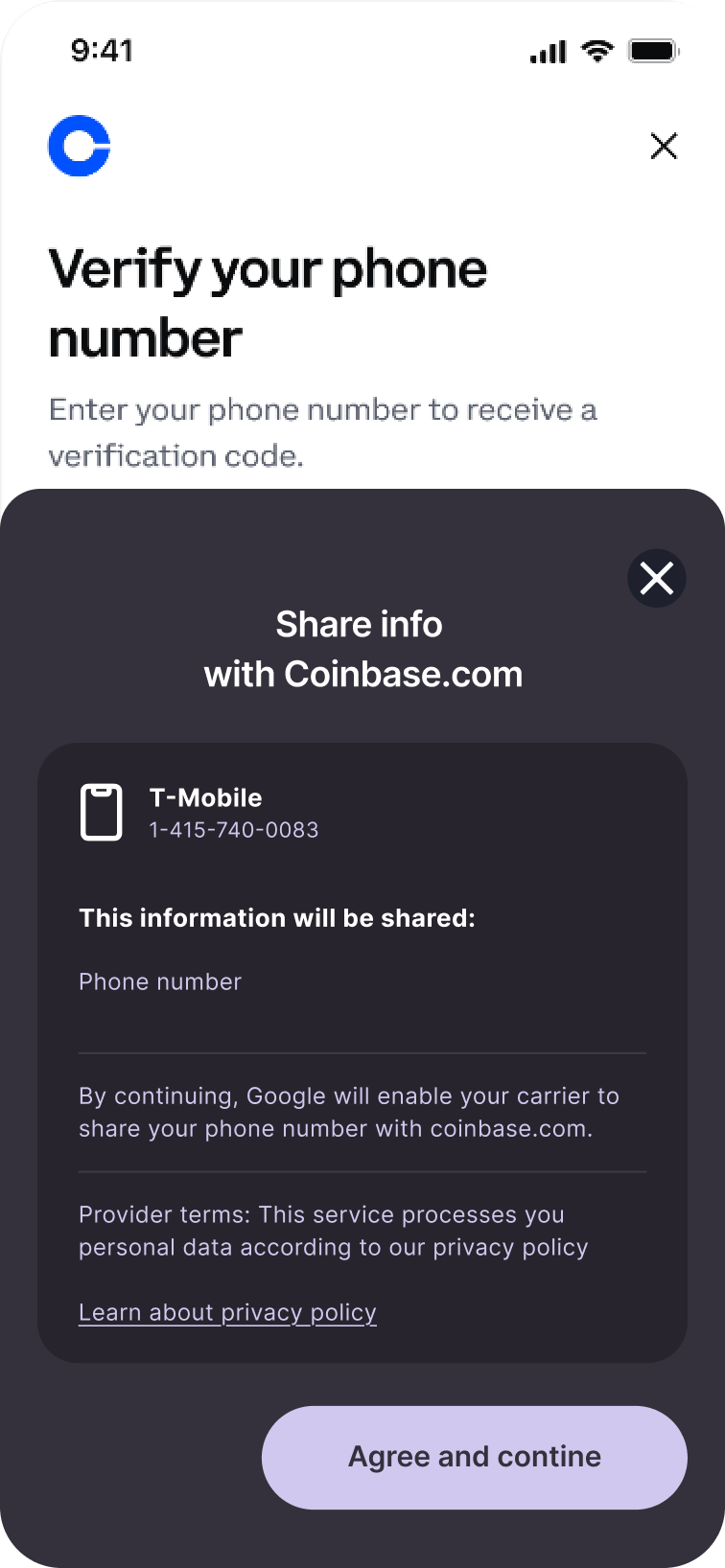
Android TS43 Consent Screen
Title
"Share info with [your-domain].com"
Controlled by: Your app domain
Carrier Info
Shows carrier name, logo, and the phone number being verified
Controlled by: Carrier (not customizable)
Data Being Shared
Lists what information will be shared (e.g., "Phone number verification result")
Controlled by: Carrier & use case
Provider Terms (Customizable)
The bottom section is fully customizable with three parameters:
- consent_text — The consent message text
- policy_link — URL to your privacy policy
- policy_text — The link text (e.g., "Learn about privacy policy")
Controlled by: You (Relying Party)
Customization Options
| Element | Who Controls | Customizable? | How to Customize |
|---|---|---|---|
| Dialog Title | Android OS | No | Automatic—uses the invoking domain |
| Carrier Logo & Info | Carrier | No | — |
| Data Shared Text | Carrier | No | — |
| Consent Text (consent_text) | You | Yes | Contact Glide to configure |
| Privacy Policy Link (policy_link) | You | Yes | Contact Glide to configure |
| Privacy Policy Link Text (policy_text) | You | Yes | Contact Glide to configure |
iOS App Clips
App Clip Consent
iOS App Clips are controlled by Apple and the carrier. The App Clip card appearance, consent text, and branding are determined by the carrier's App Clip configuration—not customizable by the Relying Party.
Key Points for Integration
Always assume consent will be shown
Design your UX with the expectation that users will see a consent prompt. Even if some carriers don't require it, most do.
Consent is handled automatically
Glide's SDK manages all consent flows—you don't need to implement consent UI yourself.
Consent adds ~2-3 seconds to the flow
Factor this into your UX timing expectations. The headless flow (Verizon on Android) is the exception—instant with no consent.
User can decline consent
Always have a fallback authentication method ready (e.g., OTP) in case the user declines the consent prompt.